How to Optimize Picture Quality on Your Smart TV
14 December 2025
Smart TVs are getting better every year with higher resolutions, better color accuracy, and advanced display technologies. But have you ever noticed that your TV's picture doesn't look as sharp or vibrant as it should? Out of the box, most TVs are not tuned for picture quality—they're set up to look extra bright and punchy in a showroom.
If you want to get the best picture possible, you’ll need to make a few tweaks. Don't worry—it's not as complicated as it sounds. In this guide, I'll walk you through the essential steps to optimize picture quality on your Smart TV. 
1. Choose the Right Picture Mode
Your TV comes with different preset picture modes designed for various viewing conditions. Here’s a quick breakdown of the most common ones:- Standard – A balanced mode, but often mediocre for movies and games.
- Vivid/Dynamic – Overly bright and saturated, designed for store displays.
- Cinema/Movie – The most accurate for watching films in dark rooms.
- Sports – Enhanced motion smoothing, but can look unnatural.
- Game – Reduces input lag for gaming but may lower image processing.
For the best picture quality, switch to Cinema/Movie Mode when watching films and TV shows. If you're gaming, Game Mode will give you the best response time. 
2. Adjust Brightness and Contrast
Brightness and contrast settings control how well details appear in dark and bright parts of the screen.- Brightness – Adjusts the black levels. If it's too high, blacks will look gray. If it's too low, you'll lose detail in darker scenes.
- Contrast – Controls the white levels. Too high, and you’ll lose detail in bright areas; too low, and everything looks washed out.
A good method for setting brightness is to pause a dark scene and adjust until you can see details in the shadows without making the screen look gray. For contrast, do the same with a bright scene—adjust so whites are bright but don't lose detail. 
3. Fine-Tune Sharpness
Many TVs come with sharpness settings cranked up too high, which leads to artificial-looking edges and halos around objects.- If your sharpness is too high, you’ll notice an unnatural "halo" effect around text and objects.
- If your sharpness is too low, the image may look blurry.
A good rule? Reduce sharpness to around 0–20% for a more natural and crisp image. 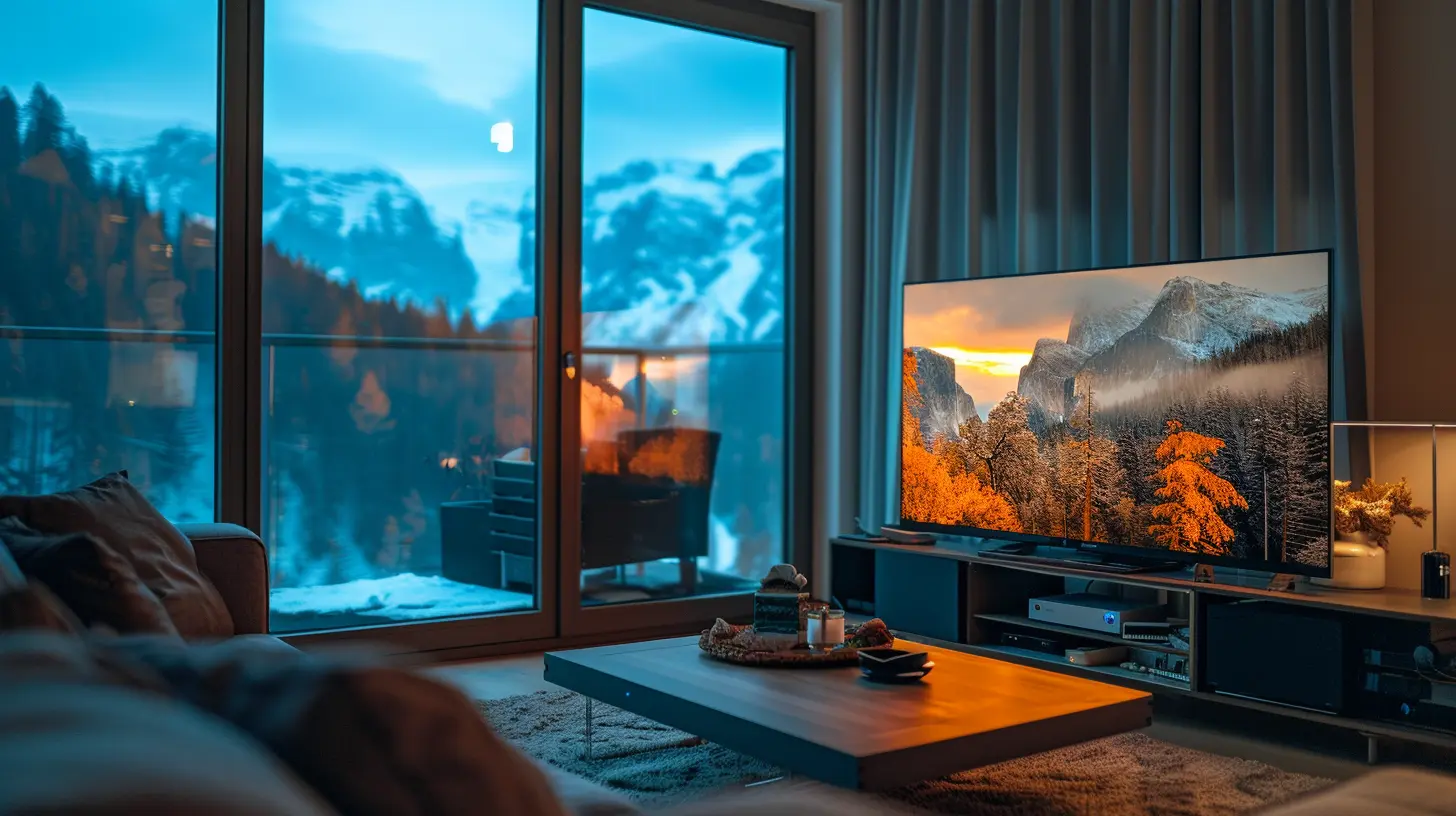
4. Disable Motion Smoothing (Soap Opera Effect)
Motion smoothing, often called the "soap opera effect," makes movies and TV shows look artificially smooth—almost like a home video. While it's useful for sports, it ruins the cinematic feel of movies.To turn it off, look for these settings in your TV menu:
- Motion Smoothing
- TruMotion (LG)
- Auto Motion Plus (Samsung)
- MotionFlow (Sony)
Disable or reduce this setting for a more natural look.
5. Set the Correct Color Temperature
Most TVs default to a cool (bluish) color tone, making whites look unnatural. For the best accuracy, switch to Warm or Warm2 mode.This setting helps balance colors more accurately, making skin tones and natural elements look true-to-life.
6. Turn Off Unnecessary Processing Features
Smart TVs come loaded with extra settings that often degrade picture quality rather than improve it. Here are some to disable:- Noise Reduction (NR/DNR) – Modern HD and 4K content don’t need this, and it can make images look soft.
- Dynamic Contrast – Adjusts contrast on the fly, but often results in lost details.
- Black Enhancer/Black Tone – Tends to crush details in dark areas.
Once these are turned off, your TV will display images closer to how the creators intended.
7. Optimize HDR Settings
If your TV supports HDR (High Dynamic Range), make sure it's enabled for apps like Netflix, Disney+, and gaming consoles. HDR enhances contrast and color, making images look more lifelike.For gaming, also enable HDR Game Mode for better responsiveness and visuals.
8. Adjust Backlight (For LED TVs)
For LED and LCD TVs, the backlight setting controls overall brightness.- In bright rooms, increase backlight for better visibility.
- In dark rooms, lower it to reduce eye strain and enhance contrast.
If you have an OLED TV, keep the brightness moderate to avoid burn-in risk.
9. Calibrate Your TV with Test Patterns
For the most accurate setup, use test patterns available on YouTube or calibration discs like Spears & Munsil. These guides help you perfectly adjust brightness, contrast, color, and sharpness.10. Check HDMI Settings and Use High-Quality Cables
If you're watching in 4K or HDR, using the right HDMI settings and cables is crucial.- Use HDMI 2.1 cables for 4K at 120fps (especially for gaming).
- Enable HDMI-Enhanced Mode for HDR support (may differ by brand).
- Check Input Labels – Some TVs require you to manually enable 4K HDR in settings for specific HDMI ports.
11. Adjust Viewing Angles and Room Lighting
Where you place your TV and how your room is lit can impact picture quality.- Position the TV at eye level for the best viewing experience.
- Avoid direct light on the screen to prevent glare.
- Use bias lighting (LED strips behind the TV) to reduce eye strain.
For OLED TVs, watching from an angle is fine, but some LED TVs lose color accuracy when viewed from the side.
12. Keep Your TV Updated
Manufacturers frequently release firmware updates to improve performance, fix bugs, and enhance picture quality.To check for updates:
- Go to Settings → Software Update
- Enable Auto Updates (if available)
Staying up to date ensures you get the best experience from your TV.
13. Consider Professional Calibration
If you're a perfectionist about picture quality, consider professional calibration. Experts use specialized tools to fine-tune color accuracy, contrast, and brightness to give you a reference-quality image.While DIY settings get you close, professional calibration can push your TV to its full potential—especially useful for high-end OLED and QLED TVs.
Wrapping Up
Optimizing your Smart TV’s picture quality doesn’t require complex tools—just a little tweaking in the settings. By switching to the right picture mode, fine-tuning brightness and contrast, disabling unneeded processing, and ensuring HDR is set up correctly, you’ll enjoy a much better viewing experience.So grab your remote, start adjusting, and get ready to enjoy movies, shows, and games like never before!
all images in this post were generated using AI tools
Category:
Smart TvsAuthor:

Jerry Graham
Discussion
rate this article
2 comments
Delilah Howard
This article provides valuable tips on enhancing picture quality for smart TVs. It effectively covers essential settings and adjustments, making it accessible for both beginners and experienced users. A practical guide for anyone looking to improve their viewing experience.
December 17, 2025 at 1:55 PM
Jerry Graham
Thank you for your feedback! I'm glad you found the tips helpful for enhancing picture quality on smart TVs.
Dolores McDowney
Unlock the full potential of your smart TV! Elevate your viewing experience with simple tweaks to picture settings, ensuring vibrant colors and stunning clarity. Don’t just watch—immerse yourself in a world of cinematic brilliance that transforms every scene into a masterpiece!
December 14, 2025 at 9:44 PM
Jerry Graham
Thank you for the insightful comment! Simple tweaks can indeed make a huge difference in enhancing the viewing experience. Happy watching!