How to Reduce Input Lag for Gaming on Smart TVs
26 June 2026
Gaming on a big screen feels epic, right? There’s nothing quite like immersing yourself into a vivid world on a massive Smart TV. That is… until your character starts reacting a second too late. Yep, we’re talking about input lag — that annoying delay between pressing a button and seeing the action on-screen. If you’re a gamer, even a tiny lag can wreck your gameplay, especially in fast-paced titles where split-second reactions matter.
But hey, don’t worry. If you’re tired of shouting at your screen or blaming your controller, you’ve landed in the right spot. In this guide, we’ll break down why input lag happens on Smart TVs and, more importantly, how to reduce it so your games feel snappier and just… better.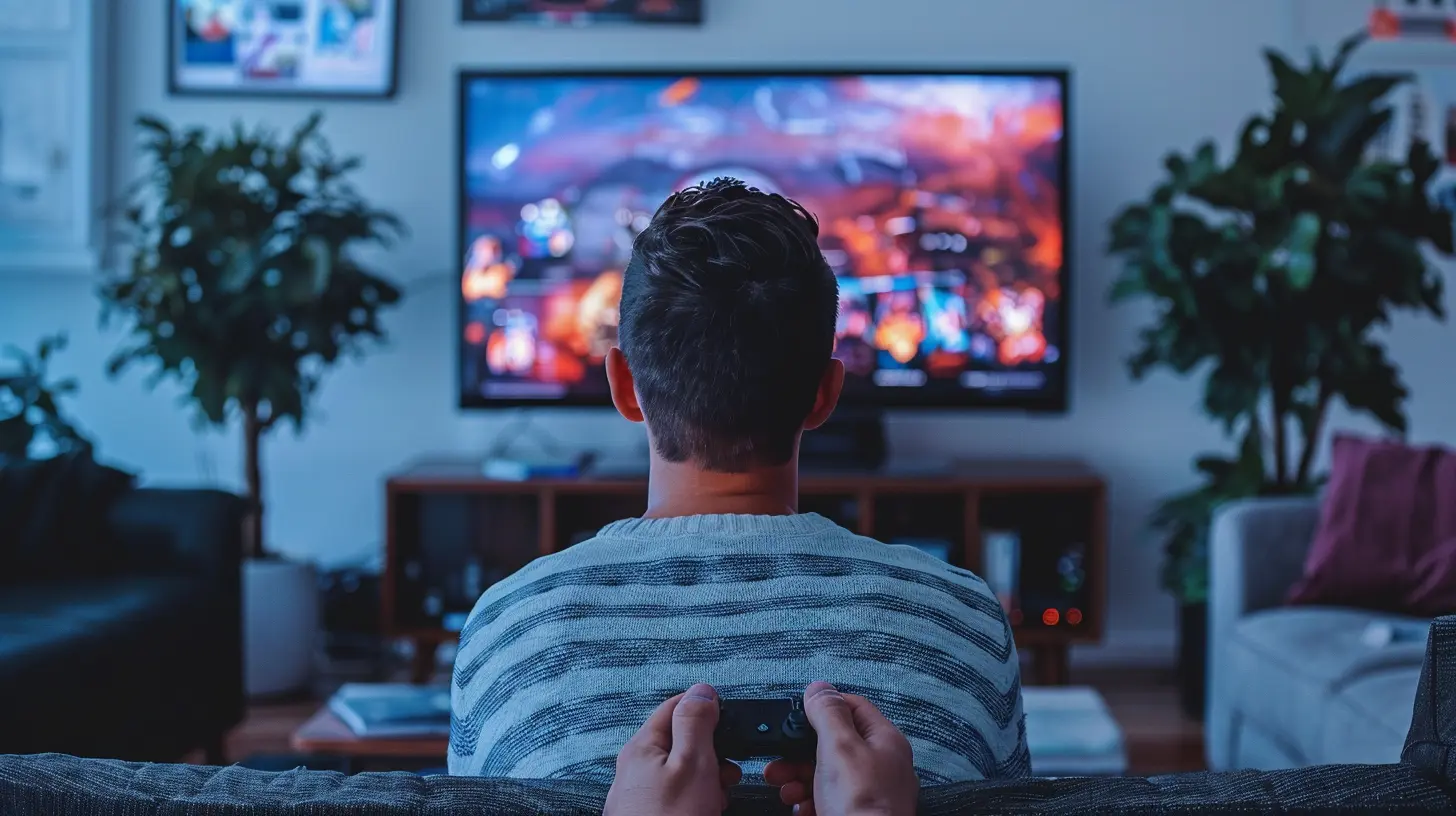
What Is Input Lag, Really?
Let’s start with the basics. Input lag is the time it takes for your TV to display an action after you’ve initiated it via your controller or keyboard. It’s measured in milliseconds (ms), and the lower the number, the better.Now, don’t confuse this with response time or refresh rate. Response time is how quickly a pixel changes from one color to another. Refresh rate is how many times the screen updates per second. Both are important, but input lag is the real enemy of fluid gaming.
If your character jumps half a second after you press the button — yeah, that's input lag. It kills your gameplay rhythm and makes competitive gaming nearly impossible.
Why Smart TVs Have Input Lag
So, what's the culprit? Why are Smart TVs — these high-tech marvels — lagging behind in response?Well, Smart TVs are smart because they do a lot. They upscale content, smooth motion, enhance images, filter noise, add virtual surround sound… fancy stuff. But all those video processing features take time. And that time? That’s what causes input lag.
When you're watching Netflix, that processing makes your shows look stunning. But in gaming, it becomes a nightmare. You want raw input, not beauty filters.
How Much Input Lag Is Acceptable?
Here’s where things get tricky. Different gamers have different tolerance for lag. For casual gamers playing slow-paced titles — think turn-based RPGs or puzzle games — anything under 50ms might feel okay. But for FPS, racing, or fighting games? You’ll want under 20ms. Ideally, aim for under 10ms for a competitive edge.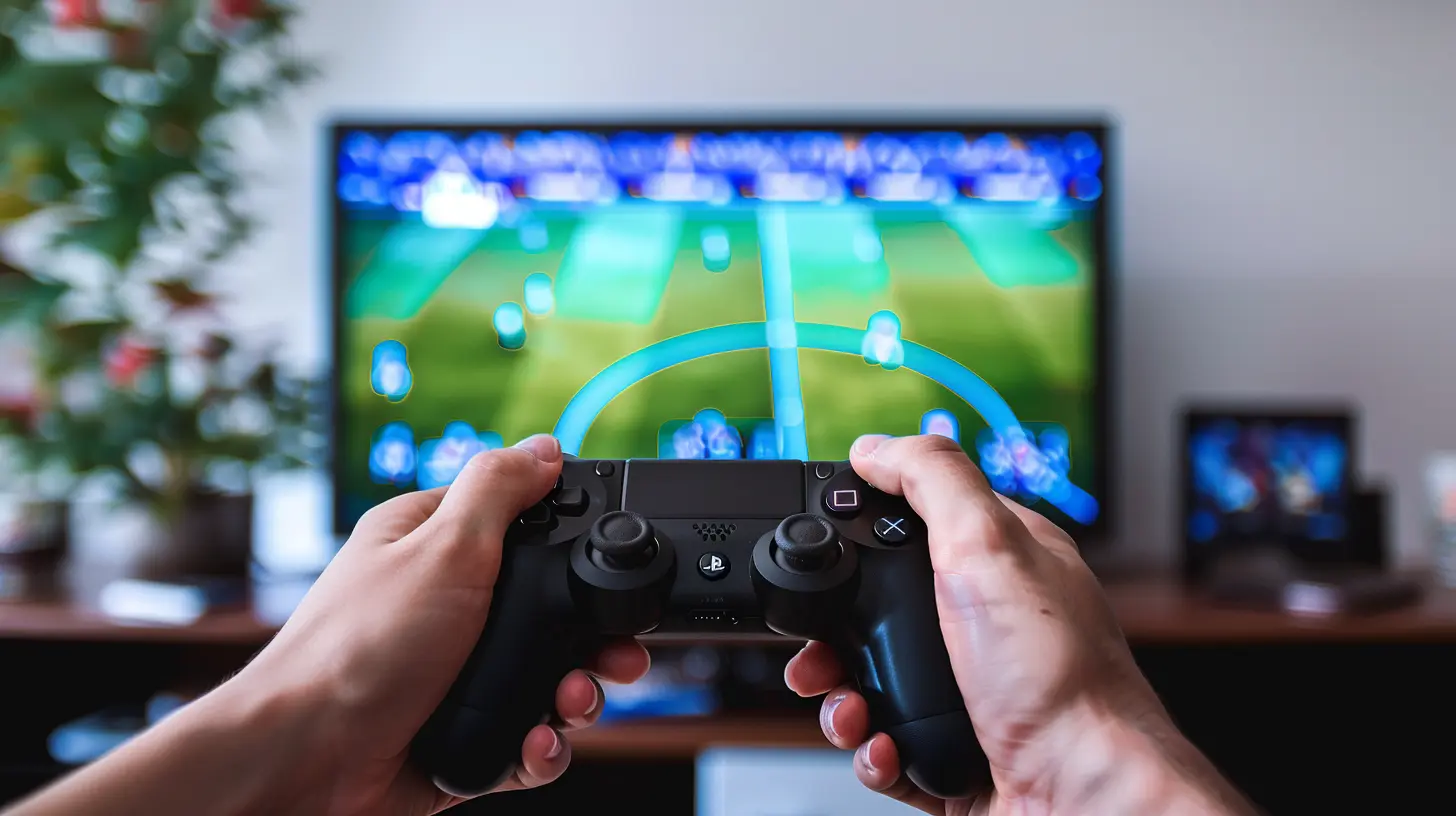
Step-by-Step Guide to Reduce Input Lag on Smart TVs
Alright, let’s get down to the good stuff. If your gaming experience is suffering from sluggish responses, here’s how to fix it.1. Enable Game Mode on Your TV
This is the golden rule. Almost every Smart TV has a “Game Mode,” and turning it on can drastically reduce input lag — sometimes cutting it in half.Game Mode disables most of the post-processing your TV normally does to images. It focuses on speed over visuals. Might look slightly less pretty, but your gameplay will thank you.
How to do it?
- Go to your TV’s settings menu
- Look for Picture or Display mode
- Choose “Game Mode” or something similar
Pro Tip: Some TVs auto-switch to Game Mode when they detect a console. Make sure your device is recognized properly via HDMI.
2. Use the Right HDMI Port (Check for HDMI 2.1)
All HDMI ports are not created equal. Some ports are optimized for gaming — especially if your TV supports HDMI 2.1.HDMI 2.1 brings features like:
- Variable Refresh Rate (VRR)
- Auto Low Latency Mode (ALLM)
- 4K at 120Hz
These can significantly improve response times and gaming smoothness.
Check your TV manual or the labeling on the inputs to find the best port for gaming.
3. Turn Off Motion Smoothing and Post-Processing Features
Ever heard of the Soap Opera Effect? That’s motion smoothing in action. TVs try to interpolate frames to make video look super smooth — but that’s terrible for games.Turn off anything like:
- MotionFlow (Sony)
- TruMotion (LG)
- Auto Motion Plus (Samsung)
- Noise Reduction
- Sharpness Enhancers
- Dynamic Contrast
The fewer filters your TV uses, the faster it responds.
4. Update Firmware Regularly
Manufacturers often release firmware updates to fix bugs, improve performance, or add new features. Sometimes, these updates include improvements to Game Mode or HDMI responsiveness.Check for updates periodically, especially if you notice sluggish input.
5. Use a Wired Connection Instead of Wi-Fi
Playing cloud-based games or streaming from services like Xbox Cloud or NVIDIA GeForce NOW? Then your network latency adds to the input lag.Wi-Fi can be flaky. A wired Ethernet connection is far more stable and faster, especially if your router is in the same room.
Even better: connect your console directly to the router if you're using remote play features.
6. Reduce Resolution and Graphics Settings on Console
If your console is pushing high-end graphics — like 4K with ray tracing — your TV could struggle with processing it in real-time. Dropping down to 1080p or reducing graphic richness may actually improve responsiveness.It’s like expecting a packed car to keep speed on a steep hill. Lighten the load, and the ride gets smoother.
7. Disable Unnecessary Overlays or Background Apps
If you’re gaming via Smart TV apps (like using Steam Link or other remote play apps), minimize background apps.Also, turn off voice assistants, screen mirroring, or anything else that might be hogging memory or bandwidth.
8. Consider External Monitors or Gaming Displays
If you’re hardcore about winning and your Smart TV won’t get the job done — you may need to consider using a gaming monitor with low input lag instead.Gaming on a monitor? That’s like using a scalpel instead of a butter knife. Precision, baby.
Best Smart TVs for Low Input Lag
If you're thinking about upgrading your TV, here are some models that are built with gamers in mind:- LG OLED C2 / C3 – Ultra-low input lag, HDMI 2.1, VRR, and 120Hz. It’s basically gamer paradise.
- Samsung QN90B / QN90C – High refresh rate, fast response, and Game Mode Pro.
- Sony A90J / A80K – Excellent for PlayStation users, especially with PS5's HDMI 2.1 features.
Check third-party benchmarks and reviews for input lag measurements when buying.
Myth-Busting: Common Input Lag Misconceptions
Let’s clear the air on some persistent myths:Myth 1: "Expensive TVs always have less input lag."
Not true. Some budget TVs actually perform better in Game Mode than ultra-premium models drowning in post-processing.
Myth 2: "Input lag is the same as lag from online gaming."
Nope. Input lag is local — it’s between you and the TV. Online lag (aka ping) happens over the network.
Myth 3: “A faster internet connection fixes input lag.”
Only if you're cloud gaming or streaming. For console and PC hooked directly to your TV, internet speed doesn’t affect input lag.
Final Thoughts
Input lag sucks. It turns amazing graphics and epic worlds into slow-motion frustration. But the good news? It’s not some unfixable curse.By tweaking a few TV settings, using the right HDMI ports, and understanding what features help or hurt performance, you can dramatically reduce input lag and make your gameplay buttery smooth again.
Smart TVs are here to stay, and as they get more gamer-friendly, knowing how to tune them becomes a must-have skill for any serious console warrior or couch co-op partner.
So grab that remote. Dive into the settings. Your kill/death ratio might just thank you.
FAQs
1. Does input lag affect all types of games?Yes, but it’s more noticeable in faster genres like FPS, racing, and fighting games.
2. Is Game Mode safe for general viewing?
You can use it, but the picture quality might look grainy or less vibrant for movies.
3. Can sound settings affect input lag?
Not directly, but using Bluetooth audio introduces audio delay. Use HDMI ARC or optical for faster sound response.
all images in this post were generated using AI tools
Category:
Smart TvsAuthor:

Jerry Graham
Discussion
rate this article
1 comments
Dakota Patel
This is a helpful guide for anyone frustrated with input lag while gaming on smart TVs. It's great to see practical tips that can improve the gaming experience. I hope these suggestions make a noticeable difference for readers.
June 27, 2026 at 10:35 AM
Jerry Graham
Thanks for the feedback! I'm glad you found the tips helpful. I hope they work well for your gaming setup.