Smart TV Setup: Tips for Seamless Installation and Configuration
15 March 2026
Setting up a Smart TV sounds easy enough, right? Just plug it in, turn it on, and boom—Netflix and chill. But let’s be honest, there’s a bit more to it than that. Between figuring out the cables, battling Wi-Fi settings, downloading apps, and tweaking picture quality, it can get overwhelming pretty fast.
So if you're staring at the box your new Smart TV came in and wondering, “Now what?”, don’t worry—you’re not alone. Whether it’s your first Smart TV or you’re upgrading to the latest model, this guide will walk you through everything you need to know for a smooth installation and configuration process. We'll keep things simple, helpful, and jargon-free (because who really wants to Google what "CEC" means?).
Let’s get your Smart TV up and running like a pro, shall we?
📦 Unboxing and Pre-Setup: The Calm Before the Chaos
First things first—let’s talk about what’s inside the box (and what should be).Take everything out and make sure you’ve got:
- The Smart TV (obviously)
- The stand or wall-mount brackets
- Power cables
- Remote control (plus batteries)
- Instruction manual (even if you never plan to read it)
- Any included HDMI or AV cables
Pro Tip: Don’t throw the packaging away too quickly. If something’s missing or broken, you’ll need it to return or exchange your TV.
Make sure your TV will have enough space wherever you’re setting it up. If you’re planning to mount it, double-check that the wall is strong enough and that you've got all the right tools on hand.
🛋️ Choosing the Best Spot for Your Smart TV
Think of your Smart TV as the centerpiece of your entertainment zone—it needs a throne!Here’s what you should consider:
- Eye-Level Viewing: The center of your screen should be roughly at eye level when you’re sitting down. This saves you from future neck aches!
- Lighting: Avoid glare from windows and overhead lights. Too much light can turn your fancy 4K screen into a reflective nightmare.
- Distance Matters: For the best viewing experience, the distance from your screen should be about 1.5 to 2.5 times the diagonal size of the TV. So if you’ve got a 55-inch TV, sit around 6 to 10 feet away.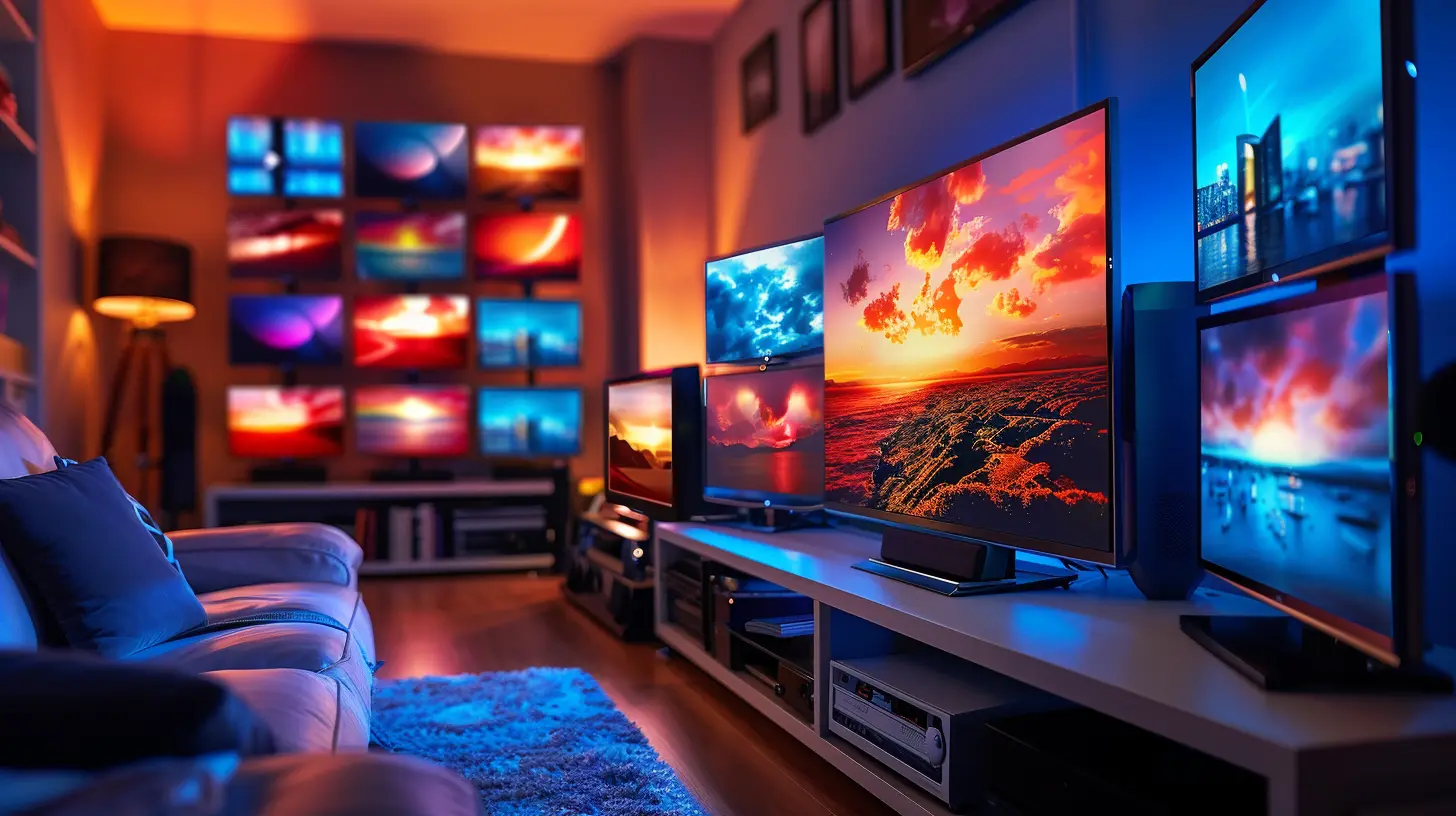
🔌 Plug It In, Baby! Setting Up the Hardware
Alright, time to get technical (but not too technical).1. Attaching the Stand or Wall Mount
If you're not wall-mounting it, attach the stand using the screws provided. Make sure it’s tight and level—you don’t want your TV wobbling every time someone walks by.2. Connect the Power Cable
Keep it simple here. Plug the TV into a surge protector (not just a wall outlet)—your expensive electronics deserve protection!3. HDMI and Other Cables
Hook up your:- Cable box
- Gaming consoles
- Soundbar or home theater system
- Blu-ray player (hey, some of us still use those!)
Use HDMI for the best quality. If your sound system uses optical audio or Bluetooth, go ahead and pair or plug that in too.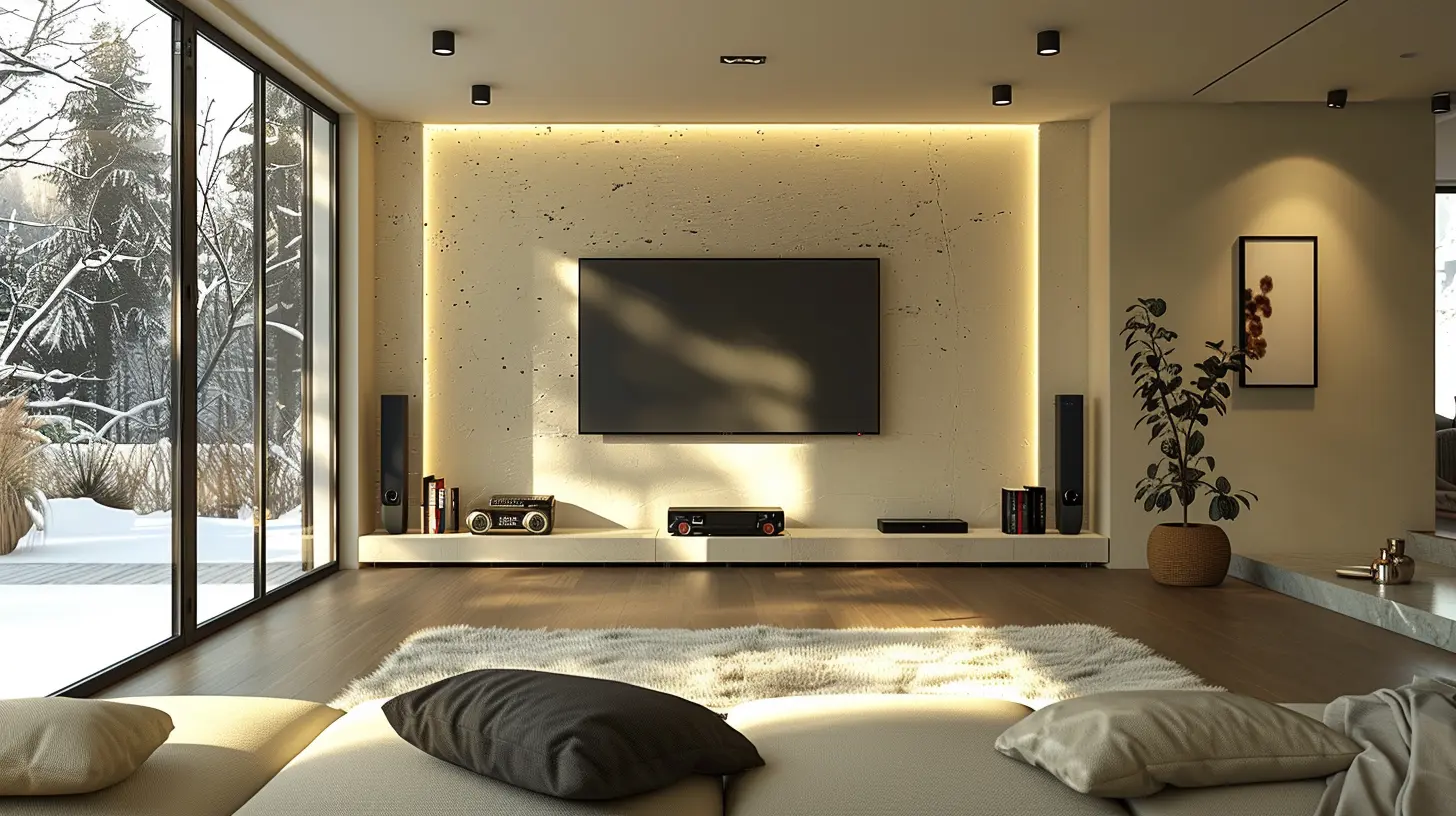
🌐 Connecting to Wi-Fi or Ethernet
Now for the most crucial step: getting your Smart TV connected to the internet.Wired vs. Wireless: Which One's Better?
- Ethernet (Wired): More stable, faster, perfect for streaming 4K or gaming.- Wi-Fi (Wireless): Easier to set up, especially if your router isn't nearby.
Either way, just follow the on-screen instructions during the initial setup:
1. Choose your network.
2. Enter your Wi-Fi password (double-check it—typos happen!).
3. Wait for it to connect.
If it fails the first time, don’t panic. Reboot your router, check your password, or try moving closer to the source.
🧠 Smart TV Initial Setup: The Real Magic Begins
Once you're online, your Smart TV will likely take you through a guided setup process. This is where things get interesting.Step-by-Step Basics
- Language Selection: Choose your preferred language.- Location: This helps configure apps and services tailored to your region.
- Time Zone and Date: Usually automatic, but double-check.
- Software Updates: Always run these right away! Updates fix bugs and improve performance.
- Sign In to Accounts: Many Smart TVs ask you to sign in with a Samsung, LG, Google, or other ecosystem account. It’s worth doing. This unlocks syncing, app access, and cloud features.
📺 Picture and Sound Settings: Make It Look and Sound Amazing
Factory settings are usually... meh. Let’s fine-tune that baby.Picture Settings
- Mode: Use "Movie" or "Cinema" mode for the most accurate colors.- Brightness & Contrast: Adjust based on your room's light. Avoid "Vivid" mode—it looks good in stores but hurts your eyes at home.
- Motion Smoothing: Turn it off unless you like everything looking like a soap opera (a.k.a. “the soap opera effect”).
- HDR Settings: If your TV supports HDR, make sure it’s enabled in the settings and on your streaming device.
Sound Settings
Built-in speakers are fine, but a soundbar elevates everything.- Tweak bass and treble to your liking.
- Enable “Clear Voice” for better dialogue clarity.
- Use “Surround” or “Stadium” modes for immersive movie or sports nights.
🧩 Download Must-Have Apps
Your Smart TV is only as smart as the apps it runs.Common favorites:
- Streaming: Netflix, Hulu, Disney+, Amazon Prime Video, Apple TV+
- Music: Spotify, YouTube Music
- Live TV: Pluto TV, Sling, Tubi
- Kids & Family: PBS Kids, DisneyNOW
- Fitness: Peloton, Daily Burn
Download what you need, sign into your accounts, and organize them on your home screen for easy access.
🔒 Privacy and Parental Controls
Here’s where things get real. Many Smart TVs collect viewing data. If that’s not your vibe, opt out in the privacy settings. Look for options like:- “Limit Ad Tracking”
- “Disable Viewing History”
- “Turn Off Voice Data Recording”
And if you’ve got kids at home:
- Set parental controls to block inappropriate content.
- Use a PIN for changing settings or making purchases.
- Turn on safe search for YouTube and browser apps.
Your TV is smart, but so are you. Take control.
👨🔧 Troubleshooting Common Issues
Stuff goes wrong sometimes. Don’t sweat it.My TV Won’t Connect to Wi-Fi
Try this:- Re-enter your password.
- Restart the router and the TV.
- Move the router closer if possible.
- Switch to Ethernet if all else fails.
Apps Keep Crashing
- Update the apps regularly.- Uninstall and reinstall if necessary.
- Make sure there’s enough internal storage left.
Picture Looks Weird
- Check the HDMI source.- Adjust the resolution on your streaming/gaming device.
- Use a calibration tool or app if needed.
💡 Pro Tips for a Next-Level Smart TV Experience
Now that you’ve got the basics down, let’s get fancy.1. Use a Universal or Voice Remote
No more juggling 3 remotes. Get one that handles your TV, sound system, and streaming box.Bonus: Voice remotes let you say “Play Stranger Things” instead of typing it out.
2. Enable HDMI-CEC
This little setting lets your TV control other devices connected via HDMI. For instance, turning on your PlayStation can auto-switch to Game Mode on your TV.3. Calibrate for Gaming
If you’re a gamer, enable "Game Mode" to reduce lag. Some TVs even support VRR (Variable Refresh Rate) or ALLM (Auto Low Latency Mode).🔄 Keep It Updated
Software updates aren’t just annoying pop-ups—they actually improve your Smart TV.Turn on auto-updates where possible, and check every few months for:
- System updates
- App updates
- Security patches
A well-updated TV is a happy TV.
🛠️ When in Doubt, Call Support
Still stuck? That’s okay. Every brand has a support line or live chat:- Samsung: 1-800-SAMSUNG
- LG: 1-800-243-0000
- Sony: 1-239-245-6354
Sometimes, talking to a real human is the fastest solution.
🎯 Wrapping Up
Setting up a Smart TV doesn’t have to feel like assembling IKEA furniture blindfolded. With the right mindset and a little guidance, it can actually be kind of fun (or at least not frustrating).From unboxing to streaming your favorite show, each step brings you closer to the entertainment experience you deserve. And remember—nobody gets it perfect the first time. Tweak, adjust, explore, and make the experience your own.
Your Smart TV isn't just a screen; it's your ticket to a world of content, connection, and convenience. So go ahead, dim the lights and grab the popcorn—you’ve earned it.
all images in this post were generated using AI tools
Category:
Smart TvsAuthor:

Jerry Graham
Discussion
rate this article
2 comments
April Roberts
Great article! I really appreciate the clear tips on setting up a Smart TV. As someone who often struggles with tech, your step-by-step guidance makes it much easier to navigate the installation process. Thank you for sharing your expertise!
March 21, 2026 at 4:10 AM
Jerry Graham
Thank you for your kind words! I'm glad the tips helped make the setup process easier for you. Happy viewing!
Roxie Richardson
Great tips! Simplified my setup process significantly, thanks!
March 19, 2026 at 12:08 PM
Jerry Graham
Thank you! I'm glad you found the tips helpful. Enjoy your smart TV!