Unlock Hidden Features in Your Smartphone You Never Knew Existed
20 October 2026
Your phone is lying to you. Not in a malicious, spy-thriller way, but in the way a Swiss Army knife lies to you when you only ever use the big blade. The corkscrew, the tiny scissors, the toothpick you forgot was there until you had spinach at a wedding. Your smartphone is packed with tools that the manufacturer built, tested, shipped, and then buried under three menus because a product manager decided the home screen was getting crowded.
I have spent years digging through developer options, accessibility settings, and obscure gesture panels on phones from every major manufacturer. What follows is not a listicle of "10 secret tricks" copied from a forum post in 2019. It is a practical tour of genuinely useful features, why they exist, when they help, and when they will make your life worse. Some of these will save you real time. A few will make you question the design decisions of billion-dollar companies. All of them are already on the device in your hand.
Let us start with the settings you walk past every day without noticing.
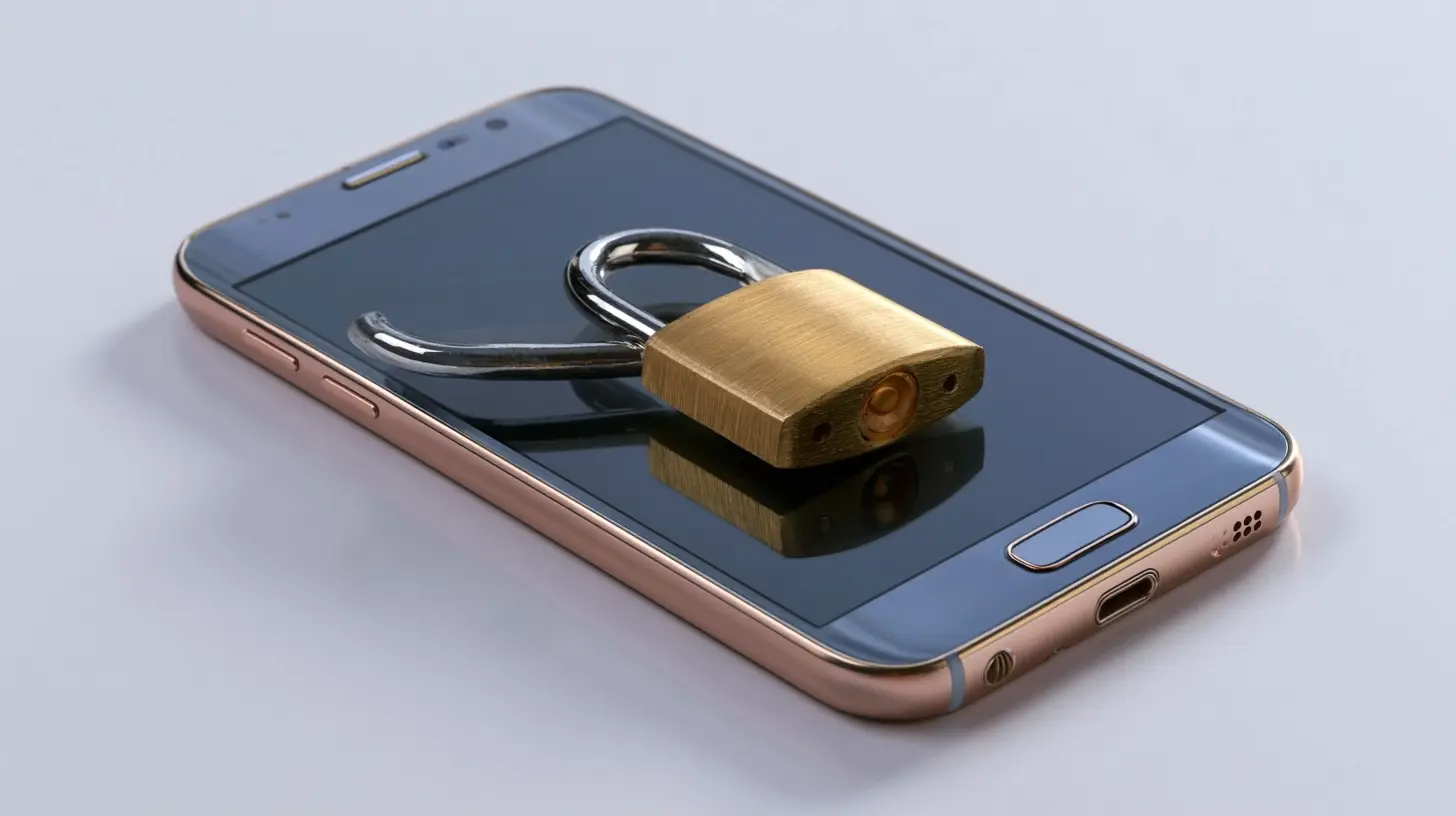
Why Manufacturers Hide the Good Stuff
Before we get into specifics, it helps to understand the logic behind the hiding. Phone makers are not being coy for fun. They face a genuine tension: power users want granular control, and everyone else wants a phone that works without a manual. Every toggle added to the main settings menu increases the chance that a non-technical user flips something, breaks their experience, and blames the brand.So companies bury advanced features behind long-press gestures, developer menus, and accessibility submenus. The features are still there, fully supported, and often polished. They are just gated behind a small amount of friction. This is why the best hidden features tend to be the ones that solve a specific, recurring annoyance rather than flashy party tricks. Flashy tricks get their own marketing pages. Quiet workflow fixes get buried.
One more thing worth saying up front: hidden features vary enormously by platform and manufacturer. A feature that is a single toggle on a Pixel may require a third-party app on a Samsung, and may not exist at all on a budget device from a regional brand. I will flag where things differ so you are not hunting for a switch that was never installed.

Developer Options: The Toolbox Behind the Curtain
The most famous hidden menu on Android is Developer Options, and it is famous for a reason. It is also the most misunderstood. People either ignore it entirely or dive in and change animation speeds to zero, then wonder why their phone feels "broken" in a different way.How to reach it, and what it actually is
You unlock Developer Options by tapping the build number in the About Phone section of settings seven times. That ritual exists to make sure you really mean it. Once unlocked, you get access to settings that app developers use to test their software: animation scaling, background process limits, USB debugging, and a pile of diagnostics.The three settings that are genuinely worth changing
Animation scale. The window, transition, and animator duration scales default to 1x. Dropping them to 0.5x makes the entire interface feel snappier because you are cutting the time the system spends on decorative transitions. This is not a placebo. The animations are simply shorter. The trade-off is that very short animations can look abrupt on slower hardware, and setting them to zero can make some apps feel jerky because they expect a transition to complete. Half speed is the sweet spot for most people. This is a preference change, not a performance boost, so do not expect your battery life to improve.Background process limit. This one is tempting and usually a mistake. Limiting background processes sounds like it should save battery and speed things up. In practice, Android is already aggressive about killing background apps, and forcing the limit lower causes apps to reload from scratch more often, which burns more power and makes multitasking worse. Leave it alone unless you are debugging a specific problem.
USB debugging. Only relevant if you plan to use a computer for development, sideloading, or advanced backup tools. It is not dangerous by itself, but leaving it on means any computer you plug into can issue commands to your phone. Turn it on when you need it and off when you are done. This is the single most common security mistake I see among people who discover Developer Options.
The broader lesson: Developer Options is a diagnostic toolbox, not a performance tuning menu. Treat every toggle there as something that exists to help developers reproduce problems, not to make your phone faster.

Accessibility Settings: The Most Underrated Menu on Your Phone
Here is an uncomfortable truth about the tech industry: accessibility features are often the most thoughtfully engineered parts of a phone, because they have to work flawlessly for people who depend on them. That same engineering benefits everyone else, which is why this menu is a goldmine.One-handed mode and reachability
Modern phones are enormous. Most manufacturers include a gesture or setting that shifts the top of the screen down so your thumb can reach it. On many Android phones this is a swipe down on the gesture bar or a triple-tap on the home button area. On iPhones it is a swipe down on the bottom edge of the screen. The feature exists for people with limited hand mobility, but it is genuinely useful for anyone using a large phone on a crowded train. The catch is that it is a temporary shift, not a permanent layout change, so you have to trigger it every time.Magnifier and screen magnification
Both major platforms offer a magnifier that turns part of your screen into a zoomed view. This is not just for reading tiny text. It is excellent for reading serial numbers, checking the fine print on a PDF, or examining a photo for detail. The trade-off is that magnification changes how touch input maps to the screen, so tapping precisely becomes harder while zoomed in. Use it for reading, not for tapping.Color filters and text contrast
Accessibility menus include color correction filters and high-contrast text modes. These are designed for color blindness and low vision, but they also help in bright sunlight when your screen washes out. The caveat is that color filters change how photos and videos look, which matters if you edit images on your phone. If you use a filter, remember to turn it off before judging color in a photo.Sound recognition and live captions
Live caption features can transcribe audio playing on your device in real time. This is a lifesaver in loud environments, during meetings where you cannot turn up the volume, or when watching a video with no subtitles. It runs on-device on most modern phones, which means it works offline and does not send audio to a server. Accuracy varies with accents and background noise, so treat it as a helpful aid rather than a legal transcript.
Gestures and Shortcuts That Actually Save Time
Gesture navigation is the area where manufacturers hide the most functionality in plain sight. The problem is that nobody tells you the gestures exist, so you never try them.The long-press everywhere rule
Long-pressing is the closest thing smartphones have to a universal secret handshake. Long-press the camera icon and you get quick access to selfie mode or video. Long-press a notification to control how that app alerts you. Long-press the power button on many Android phones to bring up a quick control panel for cards and smart home devices. Long-press text to get a magnifier and selection tools. The pattern is consistent: a long-press reveals the secondary layer of any element. Once you internalize this, you will find features on your own that no article lists.Quick settings editing
The panel you swipe down from the top of the screen is editable. On Android you can long-press a tile to open its settings, and in the edit mode you can drag rarely used tiles out and useful ones in. Most people never rearrange this panel, which means their most-used toggles are buried on a second page. Spend two minutes organizing it. Put the three or four things you actually toggle, like flashlight, hotspot, and screen rotation lock, on the first page.Back tap and double-tap shortcuts
Some phones let you assign actions to tapping the back of the device or double-tapping the screen. These are surprisingly useful for launching the camera, opening the flashlight, or taking a screenshot. The trade-off is accidental triggers. A back tap can fire when you set the phone down firmly, and double-tap gestures can conflict with app behavior. Test any gesture shortcut for a week before relying on it.Camera Features Buried in Plain Sight
Camera apps are where manufacturers put their most impressive engineering and their worst menu design. Features that took teams of engineers years to build are often hidden behind a "more" button.Pro mode and manual controls
Most phones include a pro or manual mode that lets you control ISO, shutter speed, focus, and white balance. You do not need to be a photographer to benefit. Manual focus is useful when autofocus hunts on a reflective surface or through glass. A slower shutter speed is the difference between a blurry night photo and a sharp one, provided you can hold the phone still or prop it against something. The trade-off is that manual settings remove the safety net of automatic exposure, so a badly chosen shutter speed can ruin a shot that auto mode would have saved. Use pro mode when auto mode fails, not as a default.RAW capture
Some camera apps can save RAW files alongside JPEGs. RAW keeps more image data, which gives you far more room to fix exposure and color in editing software. The cost is file size and workflow. RAW files are several times larger and often look flat and dull until processed, which surprises people who expect them to look better immediately. If you never edit photos, RAW is wasted storage. If you do edit, it is a genuine upgrade for difficult lighting.Locking focus and exposure
Tap and hold on a subject in most camera apps to lock focus and exposure. This is the fix for the classic problem of a bright window behind your subject confusing the meter. Lock on the subject's face, then adjust exposure with the slider that appears. It is a two-second habit that dramatically improves backlit photos.The grid and level
Turn on the camera grid. It is a rule-of-thirds guide that helps you frame shots more deliberately, and most apps also show a level indicator to keep horizons straight. These are small features with outsized impact on photo quality, and they are almost always off by default.
Battery and Performance Features You Are Probably Misusing
Battery settings attract more myths than any other part of the phone. Let us separate the useful from the superstition.Adaptive and optimized charging
Many phones can learn your charging routine and delay the final stretch to 100 percent until just before you wake up. Lithium-ion batteries age faster when held at full charge for long periods, so spreading the top-off over the night reduces wear. This feature is genuinely useful and usually on by default on newer devices. Check that it is enabled if your phone supports it.Battery saver versus restricted background apps
Battery saver throttles background activity, reduces screen refresh rate, and limits some sync. It works, but it also delays notifications and can break apps that rely on background location or syncing. Restricting individual apps is often a better approach than turning on a blanket saver, because you can keep messaging apps unrestricted while clamping down on the social media app that drains your battery. The mistake people make is restricting everything, then wondering why their fitness tracker stopped syncing.The charging myth worth correcting
Leaving your phone plugged in overnight is not the disaster folklore claims, provided your phone has charge management features. What genuinely matters more is heat. Charging under a pillow, in direct sun, or while running a demanding game stresses the battery far more than the final few percent of charge. Keep the phone cool and let the software manage the rest.Privacy and Security Settings That Deserve Five Minutes
Hidden privacy settings are less about spy-movie tricks and more about limiting how much data leaves your device by default.Permission auto-reset
Both platforms can automatically revoke permissions from apps you have not used in a while. This is a quiet, effective defense against apps that accumulate access over time. The trade-off is that a rarely used app may ask for permission again at an inconvenient moment. That small friction is worth it for apps you barely touch.Private DNS
Android supports private DNS, which encrypts your DNS queries so your carrier or a public Wi-Fi network cannot easily see which sites you look up. You can set a custom provider in network settings. This is a meaningful privacy improvement with almost no downside, though a misconfigured DNS server can slow down browsing or break some captive portal logins. If you set it and websites stop loading, that is your first suspect.Notification history
Both platforms keep a log of notifications you dismissed, accessible from settings. This is invaluable when you swipe away something important by accident. It is also a reminder of how much noise your apps generate, which can motivate you to prune notification permissions.
Common Mistakes and Misconceptions
A few recurring errors are worth calling out directly, because they waste time and sometimes cause real problems.Turning off animations and expecting a faster phone. Shorter animations feel faster but do not make the processor faster. Apps still take the same time to load.
Believing hidden features are automatically better. Some buried settings are experiments or developer tools that can destabilize your phone. The fact that a toggle exists does not mean it is meant for you.
Restricting every background app. This usually backfires, costing more battery as apps reload constantly and breaking notifications you depend on.
Using RAM cleaner apps. Modern mobile operating systems manage memory well. Third-party "boosters" often do more harm than good by killing apps the system wanted to keep ready.
Assuming a feature is missing when it is just renamed. Manufacturers use different names for the same concept: "Smart Stay," "Attention Aware," "Adaptive Battery," and so on. Search your settings for the concept, not the brand name.
How to Explore Safely Without Breaking Things
The best practice for digging into hidden settings is simple: change one thing at a time, and remember how to undo it. Before you start, note what you changed and where. If a setting makes your phone behave strangely, the fix is almost always to reverse your last change, not to factory reset.Prefer features that are documented in your phone's official settings app over third-party apps that promise to "unlock" hidden features. Those apps often request excessive permissions and rarely do anything the system cannot do natively. The genuine hidden features are already installed. You just have to find them.
Finally, be skeptical of any guide that promises a secret code to double your battery life or boost your signal. Real hidden features solve specific problems. Magic bullets do not exist.
all images in this post were generated using AI tools
Category:
Smartphone TipsAuthor:

Jerry Graham
Discussion
rate this article
1 comments
Sybil McMichael
Great article! It's amazing how many features are tucked away in our smartphones. I found a few tricks I didn't know about. Can't wait to explore more!
October 20, 2026 at 4:59 AM