How to Troubleshoot Common Issues with Your VR Headset
1 July 2026
Let’s paint a picture: you’re all hyped up to dive into a new VR game—maybe take down some aliens or explore a fantasy realm. You slip on your headset, fire everything up, and... bam! Nothing works. A black screen. No audio. Wacky tracking. Cue the frustration.
But hey, don't throw your VR headset out the window just yet. These tech gremlins are pretty common, and thankfully, most of them have quick fixes. Whether you’re rocking a Meta Quest, HTC Vive, Valve Index, PSVR, or something else entirely, I’ve got your back.
In this sassy, no-fluff guide, we’re going to walk you through how to troubleshoot common issues with your VR headset like a pro (without yelling at your computer). So grab that headset, roll up those sleeves, and let’s do some tech therapy. ?
? Issue #1: The Dreaded Black Screen of Doom
You gear up, launch VR, and… blackness. No picture. Just the void. Spooky, but fixable.? Check the Basics (Don’t Eye-Roll Just Yet)
Before you assume your headset’s possessed, double-check your cables. Unplug and replug everything. Yes, everything. Make sure those USB and HDMI/DisplayPort connections are seated snugger than your leggings after Thanksgiving dinner.Also, for PC-tethered headsets, make sure your GPU drivers are up to date. Run that update, restart your rig, and try again.
> ? Pro Tip: If you're using a laptop, make sure it's actually running the discrete GPU (NVIDIA/AMD), not the integrated one. VR and integrated graphics go together like cats and swimming pools.
?️ Try the Good Ol’ Software Reset
Sometimes the VR software just needs a kick in the rear. Restart SteamVR, Oculus software, or your headset’s platform. Still stuck? Reboot the computer. Yep, turning it off and on again still works in 2024.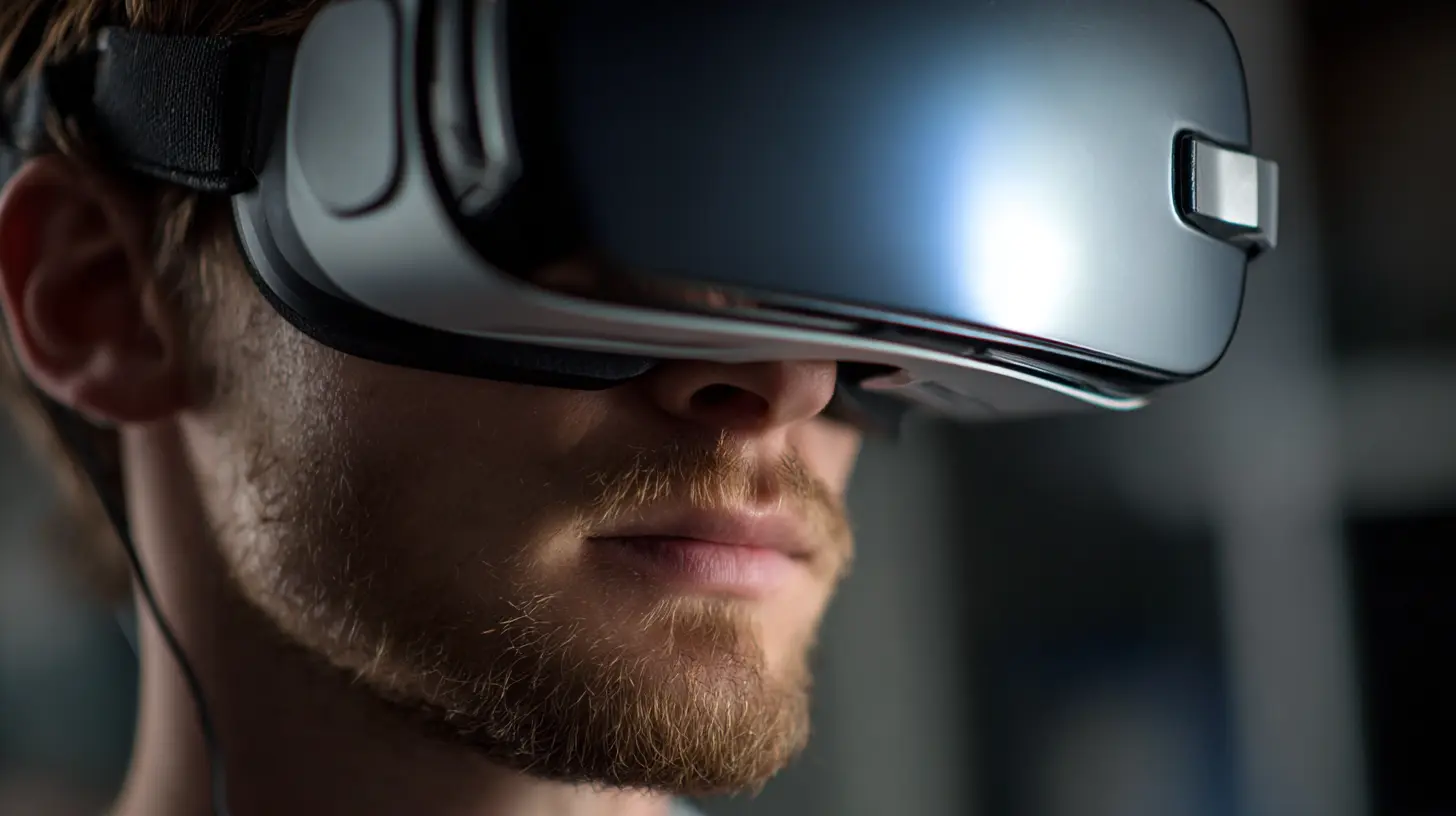
? Issue #2: Controllers Not Connecting (Or Acting Possessed)
Your VR controllers are either not showing up… or worse, drifting all over the place like they’ve had too many margaritas.? Check the Batteries
This might seem ultra-obvious, but low batteries will mess with you. Replace or recharge them even if the headset thinks they’re full. Sometimes the battery indicator lies. Rude.? Re-Pair the Controllers
If they’ve gone rogue, it’s time to reset the relationship.- Go into your headset/software settings.
- Unpair the controllers.
- Pair them again like it’s a brand-new VR romance.
? Clear the Interference
Wireless interference can slap your controllers silly. Make sure there's no other Bluetooth or wireless nonsense jamming the signals. Move away from Wi-Fi routers, microwaves (yup, still a thing), or even metal shelves.
? Issue #3: Headset Tracking is All Over the Place
You turn your head left, and your virtual self spins like a dreidel. Yeah… that’s not normal.? Check Your Lighting
Tracking hates weird lighting. Too dark, and your sensors can’t see. Too bright, and they’ll get blinded. Try a Goldilocks zone—soft, consistent lighting does wonders. Avoid direct sunlight; it can confuse tracking and overheat the headset faster than you binge a Netflix series.? Clean Those Sensors & Cameras
If your headset uses outside-in tracking (like the Vive’s base stations) or inside-out tracking (like the Quest), dirty lenses or sensors are a big no-no. Wipe them gently with a microfiber cloth. No spit shines, please.? Clear Obstructions
Keep the tracking area clear. That means no mirrors, reflective surfaces, random crap on the floor, or flailing cats. If you've got base stations or external sensors, make sure they’re not shaking or partially covered.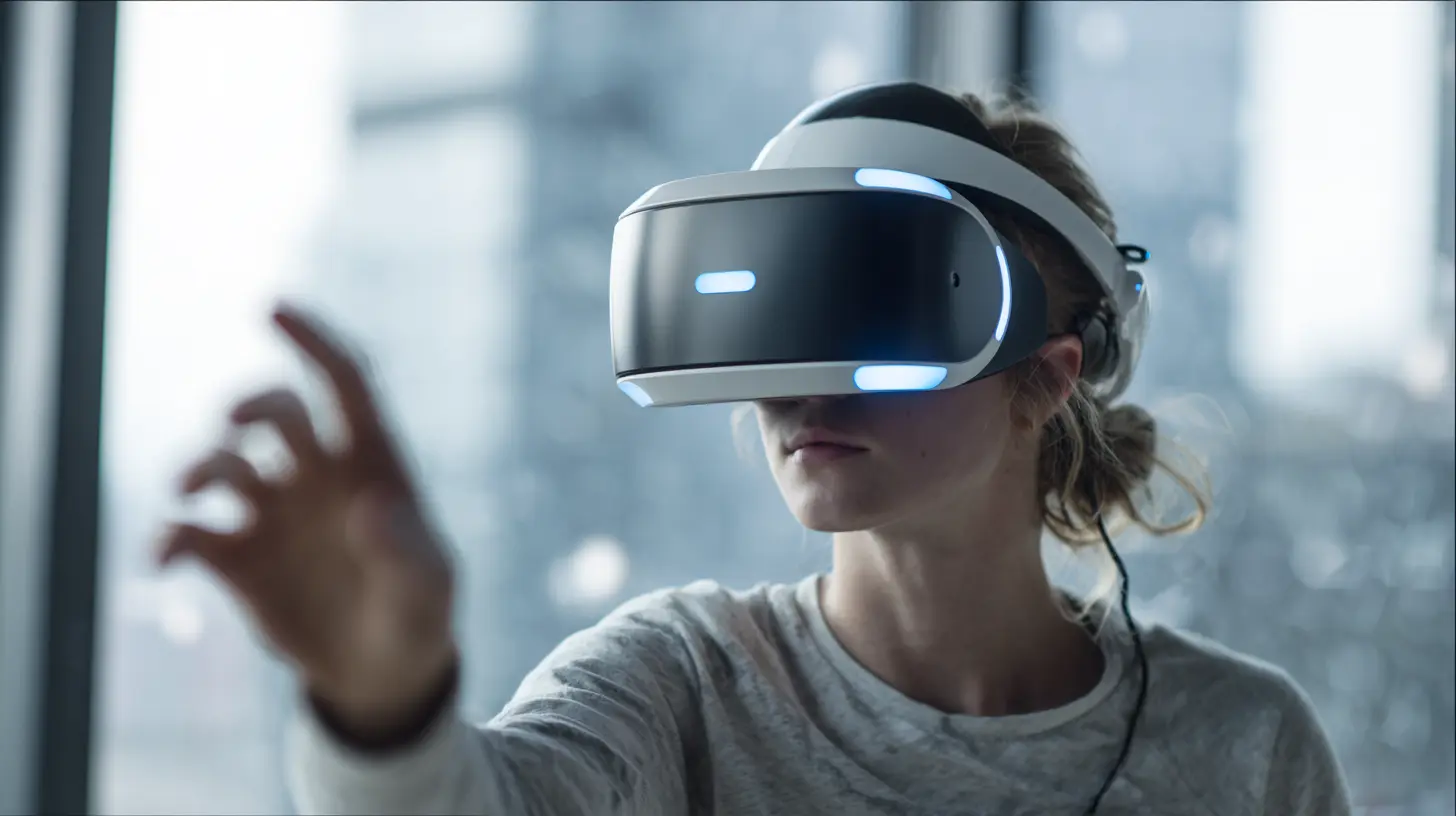
? Issue #4: No Audio or Crackling Sound
You’re trying to enjoy game immersion, but instead, your ears are getting complete silence—or worse, a nonstop crackling that makes you want to cry.? Choose the Right Playback Device
Sometimes your PC forgets it has a VR headset attached. Go into your sound settings and manually switch the audio output to the headset. This is especially true for SteamVR, which often acts like it’s got amnesia.? Update Firmware + Drivers
Yep, again with the updates. Update your headset firmware and your audio drivers. That sass from your audio might just disappear after a quick refresh.?️♀️ Inspect the Audio Jack and Connectors
Headset audio uses either built-in speakers or an audio jack. If it’s the latter, make sure the jack is seated properly. Dust and debris can ruin your sound faster than a broken mixtape.? Issue #5: VR Overheating and Crashing
You’re in the middle of a boss fight, and BAM. The headset crashes. The fans are screaming. Your virtual dreams go cold.? Take a Chill Break
Most standalone VR headsets, like the Quest, can overheat if you play for too long—especially in hot rooms. Shut it down, remove the headset, and let it cool off. A few minutes of break time can revive it.? Clean the Vents
Dust bunnies are public enemy #1. Use a can of compressed air to clean out your headset’s vents and fans if it has them. Better airflow = less overheating.? Check System Specs (PC Users)
If your PC is lagging or crashing, make sure it meets the system requirements. VR is very needy—it wants a beefy GPU, a solid CPU, and lots of RAM. Think of it like a diva pop star; it doesn’t perform unless the stage is just right.? Issue #6: Boundary Guardian Issues
You try to calibrate your play area and suddenly your walls are possessed. Your Guardian is all skewed, or worse—vanished.?️ Re-Draw Your Guardian
Sometimes you’ve just got to start fresh. Clear your Guardian/Chaperone/Play Area data in the headset settings and redraw it. Be generous with space. Don't shrink-wrap yourself into a corner.? Clean Your Floor (No, Really)
Believe it or not, messy floors confuse tracking. Move rugs, shoes, or any oddly shaped objects that may be reflecting light or casting weird shadows. Plus… bonus points for tidiness.? Issue #7: Poor Visual Quality or Blurriness
You paid for gorgeous visuals—so why does everything look like it’s been smeared with Vaseline?? Adjust Lens Spacing (IPD)
Inter-Pupillary Distance (IPD) is real, folks. If your lenses aren’t aligned with your pupils, everything’s gonna look fuzzy. Use that little toggle to adjust lens spacing until things snap into clarity.? Refocus and Fit the Headset
Get the fit right. A loose headset = blurry visuals. Adjust straps until it hugs your face just enough to stay in place but not tight enough to turn your brain into jelly.? Bump the Render Resolution (Carefully)
In settings like SteamVR or Oculus, you can manually raise the render resolution. But don’t overdo it if your PC can’t handle it. You want sharp visuals—not a slideshow.⛔ Bonus Round: Headset Not Recognized at All
Sometimes, your PC just says, “What VR headset?”? Check Device Manager (Windows Users)
Go to your device manager and look for any yellow exclamation points. If there's a driver issue, let Windows attempt to fix it. If it can’t, manually reinstall the drivers from the manufacturer's website.? Use a Different USB Port
Some VR headsets are picky eaters. Try plugging into a USB 3.0 port on the back of your tower (they tend to have better power delivery). Avoid USB hubs unless they’ve got external power.✨ Final Thoughts: Don’t Panic, Just Tweak
VR headsets are magical technology, but let's not pretend they’re flawless angels. Sometimes they throw tantrums. But with a bit of patience and a sprinkle of tech-savvy, you can typically fix most issues without losing your mind.Bookmark this guide, because trust me—you’ll need it again. And hey, troubleshooting can be... kind of empowering, right? You’re not just a player, you’re a VR whisperer now.
Now go suit up, troubleshoot like a superhero, and get back into your virtual world.
all images in this post were generated using AI tools
Category:
Vr HeadsetsAuthor:

Jerry Graham
Discussion
rate this article
1 comments
Helen Smith
Great article! Troubleshooting VR headsets can be tricky, so your practical tips are really helpful. I especially appreciated the section on resetting the device-it's a simple step that can save a lot of frustration. Thanks for sharing!
July 4, 2026 at 4:35 AM
Jerry Graham
Thank you for the kind words! I'm glad you found the tips helpful, especially the reset section. Happy gaming!