Troubleshooting Common Smart TV Issues: A Quick Guide
6 March 2026
Smart TVs have transformed home entertainment, giving us instant access to streaming platforms, apps, and even voice controls. But let's be honest—technology isn't perfect. There’s nothing more frustrating than sitting down for a movie night, only to face connectivity problems, app crashes, or a frozen screen.
Don't worry! Before you panic or call tech support, let's go through some common Smart TV issues and how you can easily fix them.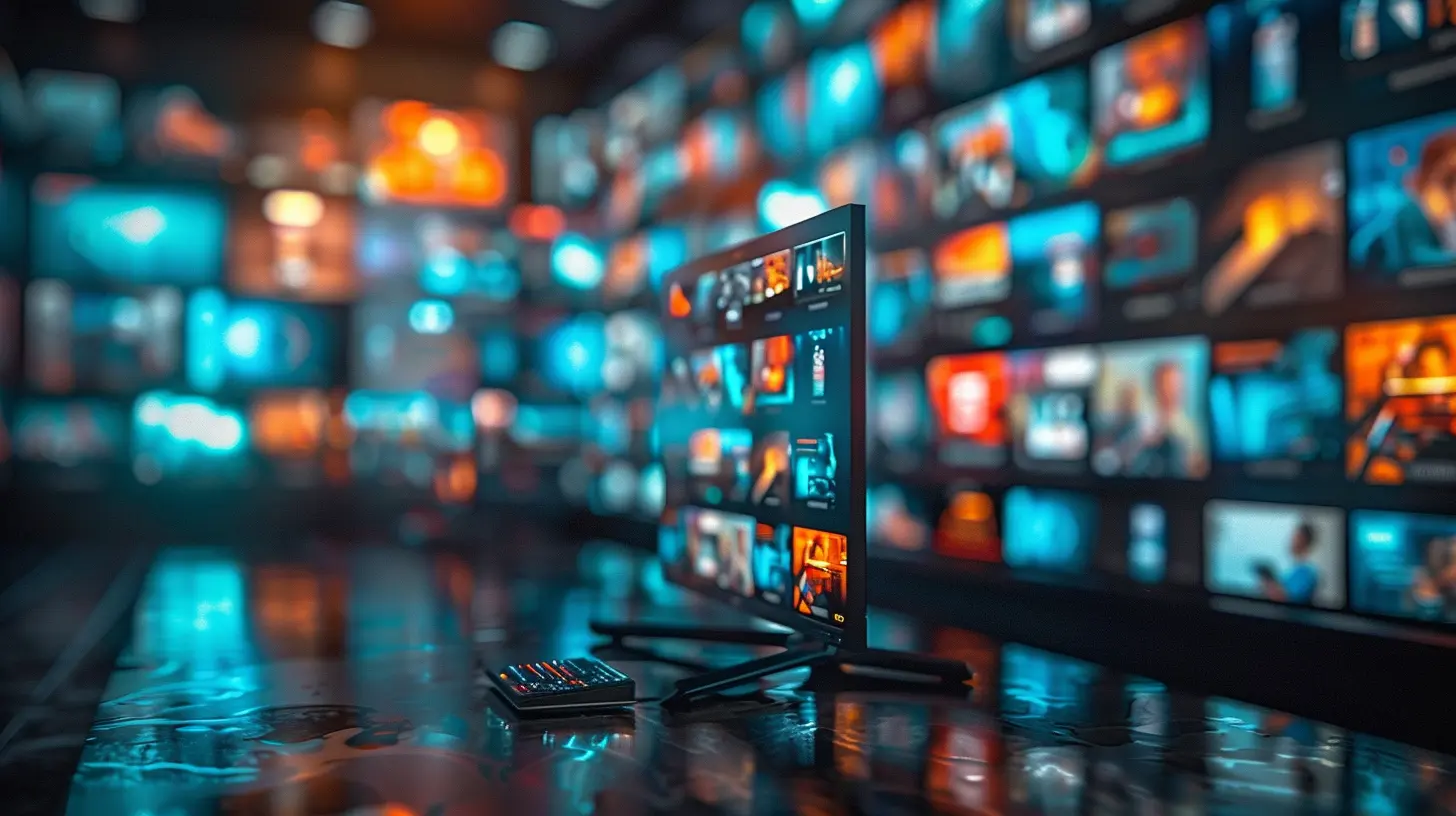
1. Smart TV Won’t Connect to Wi-Fi
Your brand-new Smart TV is supposed to be “smart,” but what good is it if it won’t connect to Wi-Fi? No internet means no Netflix, no YouTube, and no streaming—a modern-day nightmare!How to Fix It?
- Restart Everything - First things first: restart your router and TV. Unplug both devices for about 30 seconds, then plug them back in.- Check Your Internet Connection - Try connecting another device (like your phone) to the same Wi-Fi network. If that doesn’t work, the issue may be with your router.
- Move Your Router Closer - Walls and distance can weaken the signal. If your router is far away, consider moving it closer or using a Wi-Fi extender.
- Switch to a Wired Connection - If possible, connect your TV using an Ethernet cable for a more stable connection.
- Forget and Reconnect to Wi-Fi - On your TV, go to network settings, forget the Wi-Fi network, and reconnect by entering the password again.
If none of these steps work, your ISP may be experiencing outages—check with them before troubleshooting further.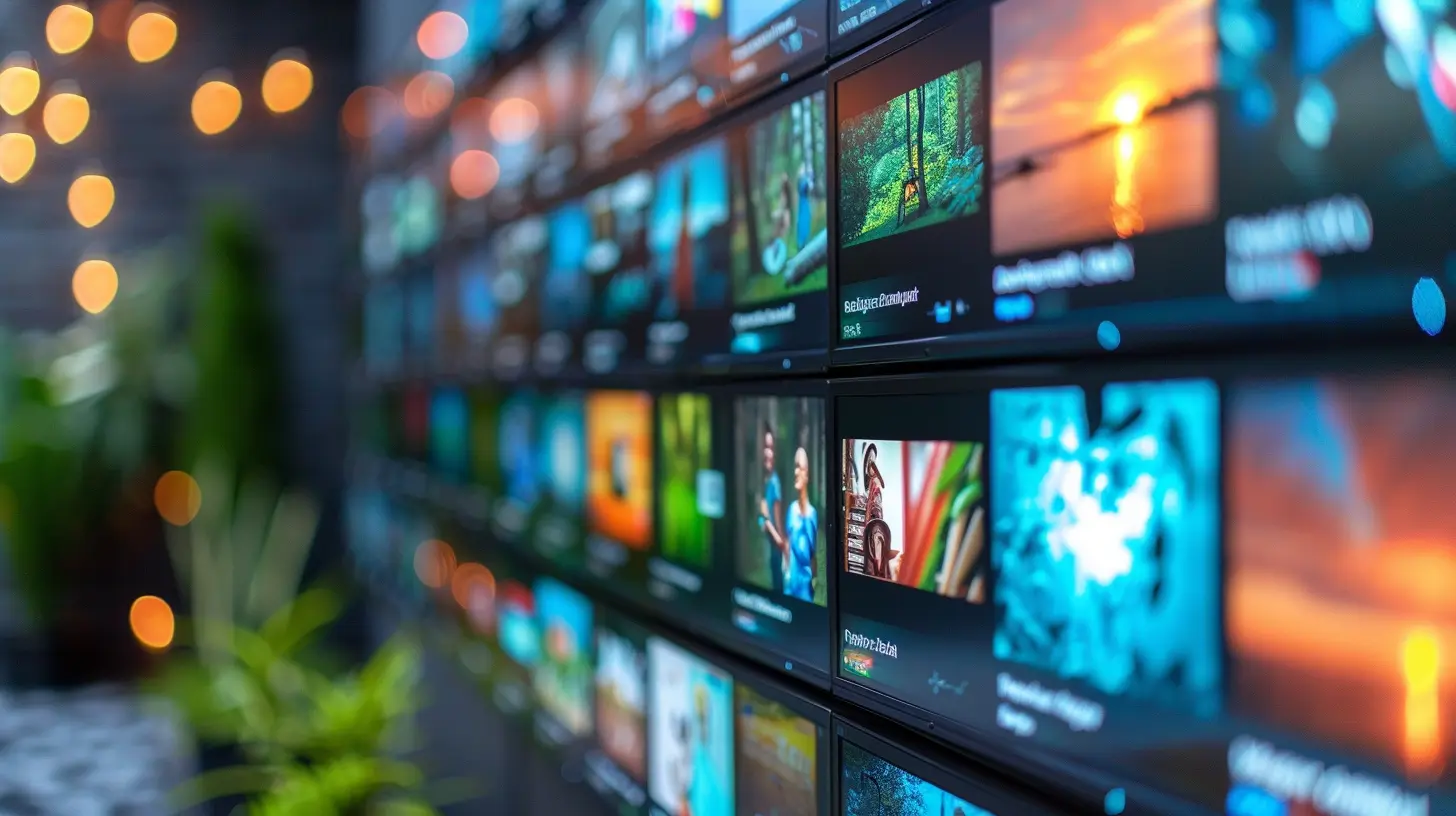
2. Smart TV Running Slow or Lagging
Ever feel like your Smart TV is crawling at a snail’s pace? Apps take forever to load, and navigating through menus feels sluggish—definitely not the experience you signed up for.How to Fix It?
- Clear the Cache - Just like your phone or computer, Smart TVs store temporary data that can slow things down. Go to your TV's settings and look for an option to clear the cache in the system or app settings.- Close Background Apps - Too many apps running in the background can drain system resources. Manually close apps you’re not using.
- Update the Software - Smart TVs need software updates just like your smartphone. Go into settings and check for updates.
- Factory Reset - If all else fails, a factory reset will return your TV to its original settings, eliminating any bloated files or glitches.
3. Apps Keep Crashing or Not Loading
Imagine this: You're about to binge your favorite show, but the Netflix app refuses to load. Frustrating, right?How to Fix It?
- Restart Your TV - A simple reboot can fix temporary glitches.- Update the App - An outdated app can cause problems. Go to your TV’s app store and check for updates.
- Reinstall the App - Uninstall and reinstall the app to clear any corrupted data.
- Update Your TV’s Firmware - If multiple apps are crashing, a software update for your TV might solve the issue.
- Check Storage Space - If your TV’s memory is full, apps may fail to run properly. Delete unused apps to free up space.
4. No Sound or Audio Issues
What's worse than a movie with bad acting? A movie with no sound at all! If your Smart TV suddenly goes silent, here’s how to get the volume back.How to Fix It?
- Check the Basics - Ensure the TV isn’t muted, and the volume is turned up.- Restart Your TV - A quick reboot might fix minor sound issues.
- Check Audio Output Settings - If you're using external speakers or a soundbar, ensure the correct audio output is selected in settings.
- Test Different Sources - Try switching to a different app or input source (like HDMI). If the issue is with only one app, it might be an app-related glitch.
- Update Firmware - Again, keeping your TV updated is crucial for avoiding random bugs.
5. Smart TV Screen is Frozen or Unresponsive
A frozen Smart TV is like a stubborn child—it just refuses to listen! If your TV won’t respond to remote commands or touch controls, here’s what you can do.How to Fix It?
- Unplug and Restart - Press and hold the power button on the remote for about 10 seconds. If that doesn’t work, unplug your TV for a minute before plugging it back in.- Check for Overheating - If your TV has been on for an extended period, overheating might be causing the freeze. Turn it off and let it cool down for a while.
- Update Software - A software update might be needed if the freezing happens frequently.
- Factory Reset - If all else fails, reset your TV to its factory settings.
6. Smart TV Remote Not Working
Pressing buttons repeatedly and nothing happens? A faulty remote can be annoying, but let’s fix it.How to Fix It?
- Check the Batteries - It sounds obvious, but dead batteries are often the culprit. Replace them with fresh ones.- Reset the Remote - Remove the batteries, press and hold the power button for about 10 seconds, then reinsert the batteries.
- Pair the Remote Again - Some Smart TVs require the remote to be re-paired. Check your TV’s manual for instructions.
- Use a Smartphone App - Many Smart TVs have remote control apps that you can use instead.
7. HDMI Ports Not Working
No signal from your gaming console or Blu-ray player? Sometimes HDMI ports stop working completely.How to Fix It?
- Try a Different HDMI Cable - A faulty cable might be causing the issue.- Switch Ports - Try plugging the HDMI device into a different port.
- Select the Correct Input Source - Ensure your TV is set to the right HDMI input.
- Power Cycle Devices - Turn off both your TV and the HDMI device, unplug them for a minute, then restart.
- Check for Firmware Updates - Again, software updates can fix HDMI-related issues.
8. Smart TV Won’t Turn On
Your Smart TV refusing to power up? Before assuming it’s dead, try these fixes.How to Fix It?
- Unplug and Plug Back In - Unplug your TV for about 30 seconds, then plug it back in.- Check the Power Outlet - Try plugging another device into the same outlet to confirm if the problem is with the TV or the power source.
- Inspect the Power Cable - A damaged power cord could be preventing the TV from turning on.
- Perform a Hard Reset - Press and hold the power button on the TV (not the remote) for about 10-15 seconds.
- Replace the Remote Batteries - If you're using a remote, weak batteries may prevent it from sending a proper signal.
Final Thoughts
Smart TVs bring endless entertainment possibilities, but they also come with their fair share of issues. The good news? Most common Smart TV problems have simple solutions that don’t require you to be a tech genius.Whenever your TV acts up, take a deep breath and try these troubleshooting tips before reaching for your phone to call support. Chances are, you’ll have everything back to normal in no time!
all images in this post were generated using AI tools
Category:
Smart TvsAuthor:

Jerry Graham
Discussion
rate this article
2 comments
Lara Sharp
Empower users with solutions!
March 8, 2026 at 5:22 AM
Jerry Graham
Absolutely! Our goal is to equip users with practical solutions for a smoother smart TV experience.
Abigail Beck
This article offers a concise overview of common smart TV issues, providing practical troubleshooting tips. It's a helpful resource for both tech-savvy individuals and those less familiar with technology, ensuring a smoother viewing experience.
March 6, 2026 at 5:53 AM
Jerry Graham
I'm glad you found the article helpful! Troubleshooting can really make a difference in enjoying your smart TV.