How to Optimize Your Smartphone for Gaming Performance
13 June 2026
Mobile gaming has seriously leveled up in the last few years. With titles like Call of Duty: Mobile, Genshin Impact, and PUBG Mobile pushing graphical boundaries, our phones are no longer just for browsing or texting—they're powerful gaming machines in our pockets. But here’s the deal: not every phone is optimized right out of the box for gaming.
Ever noticed your phone lagging during a crucial match or heating up like it's about to launch into orbit? Yep, we've all been there. The good news? You don’t always need to buy the latest flagship to get a smooth gaming experience. You just need to tweak a few things.
In this guide, we’ll unpack some smart (and simple) tricks on how to optimize your smartphone for gaming performance. Whether you're on Android or iOS, this one's for you.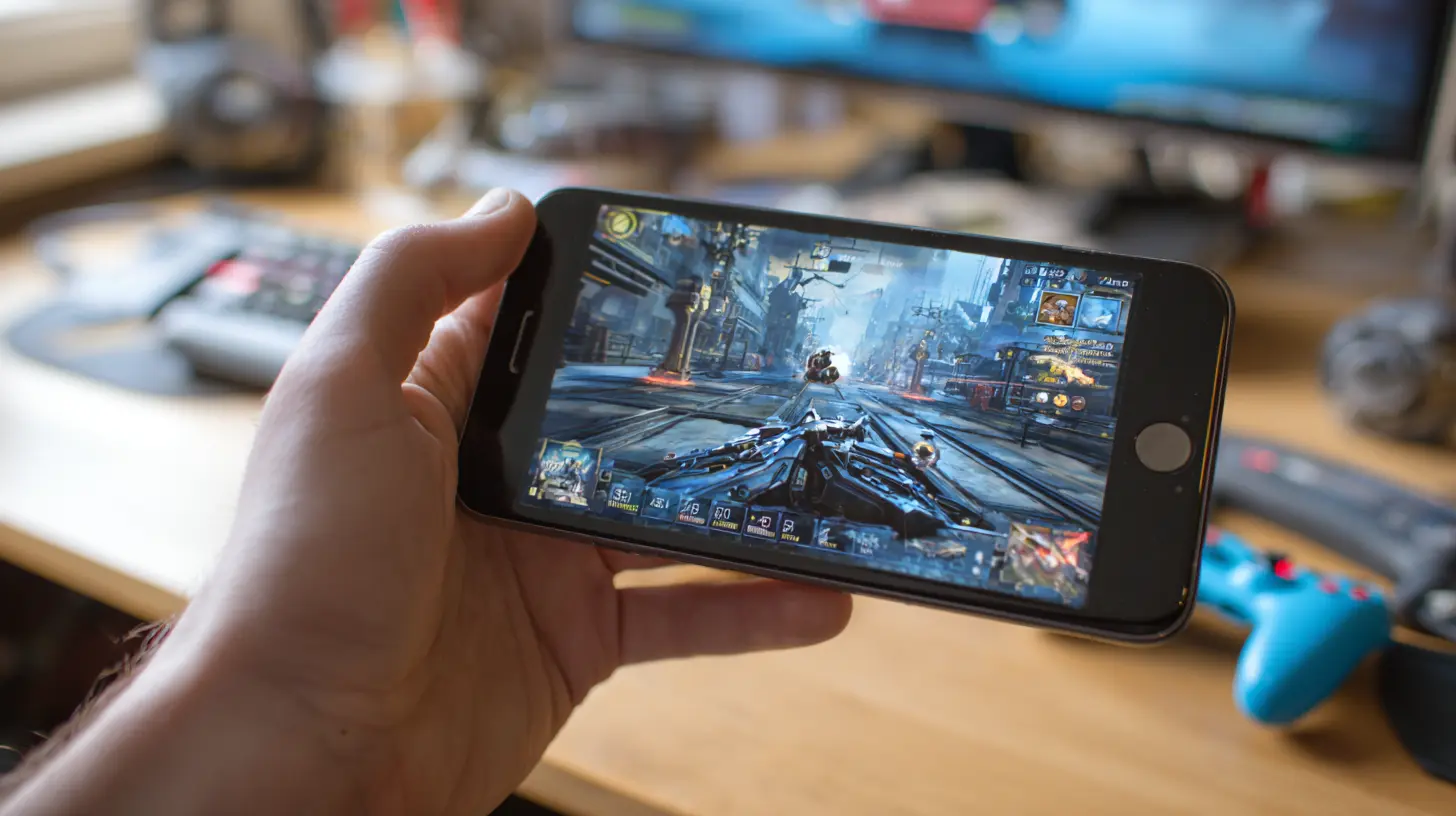
? First Things First: Know Your Hardware
Before you start tweaking anything, you need to know your phone’s hardware limitations. Not all smartphones are built equally. A high-end phone like the ROG Phone 7 or iPhone 15 Pro is already optimized for high performance. If you’re working with a mid-range or budget device, your approach needs to be different.Key specs to look at:
- Processor (CPU & GPU): Determines how well your phone can process game data.
- RAM: More RAM = smoother multitasking during gameplay.
- Storage type (UFS vs eMMC): Faster storage helps load games quicker.
- Display refresh rate: 60Hz is basic, but 90Hz, 120Hz, or even 144Hz can provide buttery-smooth visuals.
Knowing what you're working with helps set realistic expectations—and helps you avoid unnecessary frustrations later on.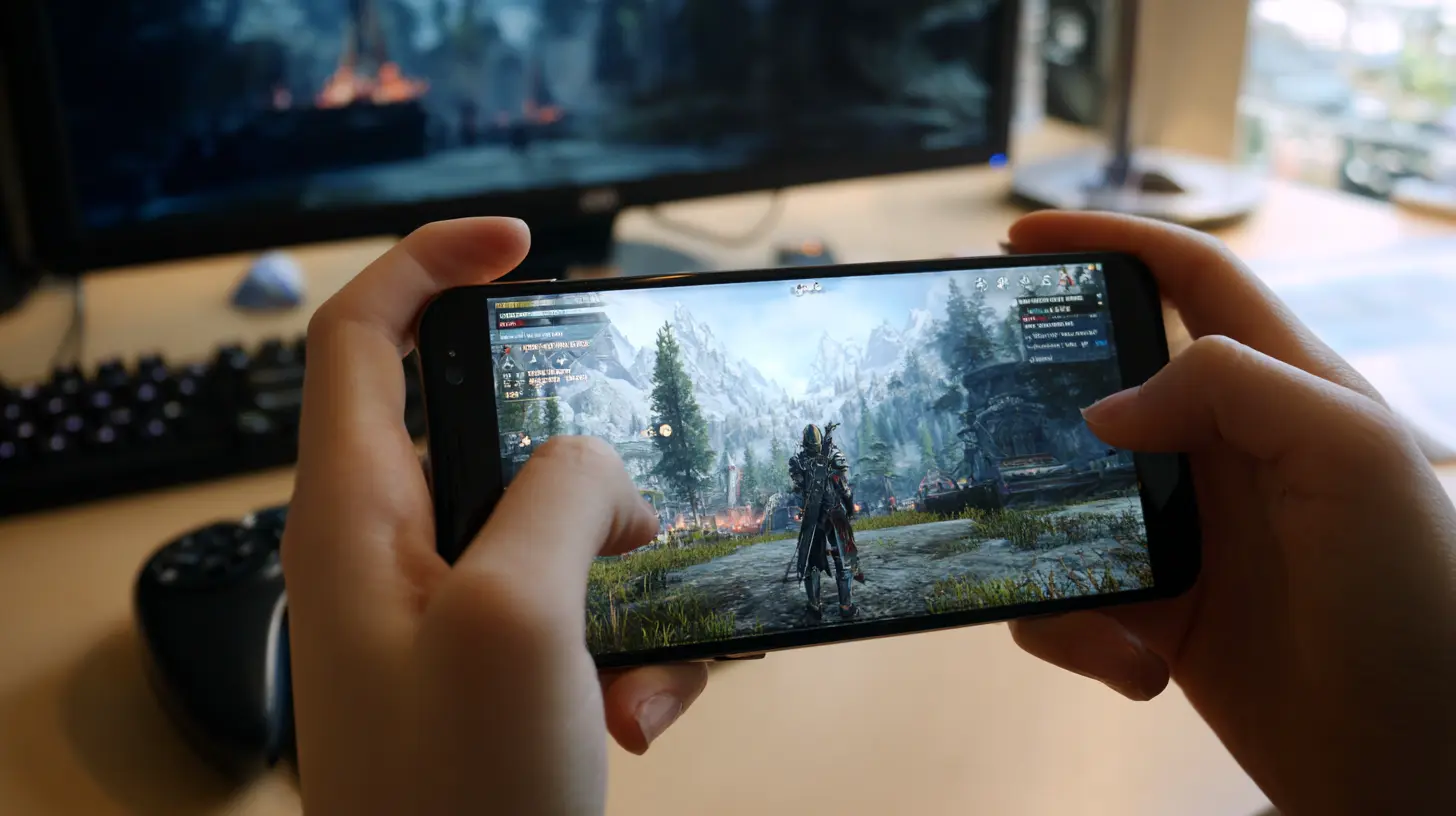
? Enable Performance Mode or Game Mode
Most modern smartphones come with a built-in Game Mode or Performance Mode feature. If your phone has one, use it. Seriously.Here’s what Game Mode usually does:
- Allocates more CPU and GPU resources to your game.
- Restricts background processes to reduce lag.
- Blocks notifications and incoming calls (goodbye accidental rage quits).
How to do it:
- Android: Go to Settings > Battery > Performance Mode or use your device’s game tools (Samsung Game Launcher, Xiaomi Game Turbo, etc.).
- iPhone: Apple doesn’t have a native Game Mode, but you can enable Low Power Mode, turn off Background App Refresh, and use Do Not Disturb during gameplay.
It’s like switching your phone into "beast mode" for gaming. Simple tweak, big difference.
? Clean Up Background Apps and Processes
Imagine trying to race with a backpack full of bricks. That’s what your phone does when it's running a bunch of apps in the background.To optimize performance:
- Close unused apps running in the background.
- Disable auto-sync for apps like Gmail, Google Photos, and social media.
- Turn off unnecessary widgets on your home screen.
This frees up RAM and CPU resources, giving your game more room to breathe. Think of it as decluttering your gaming space—only digital.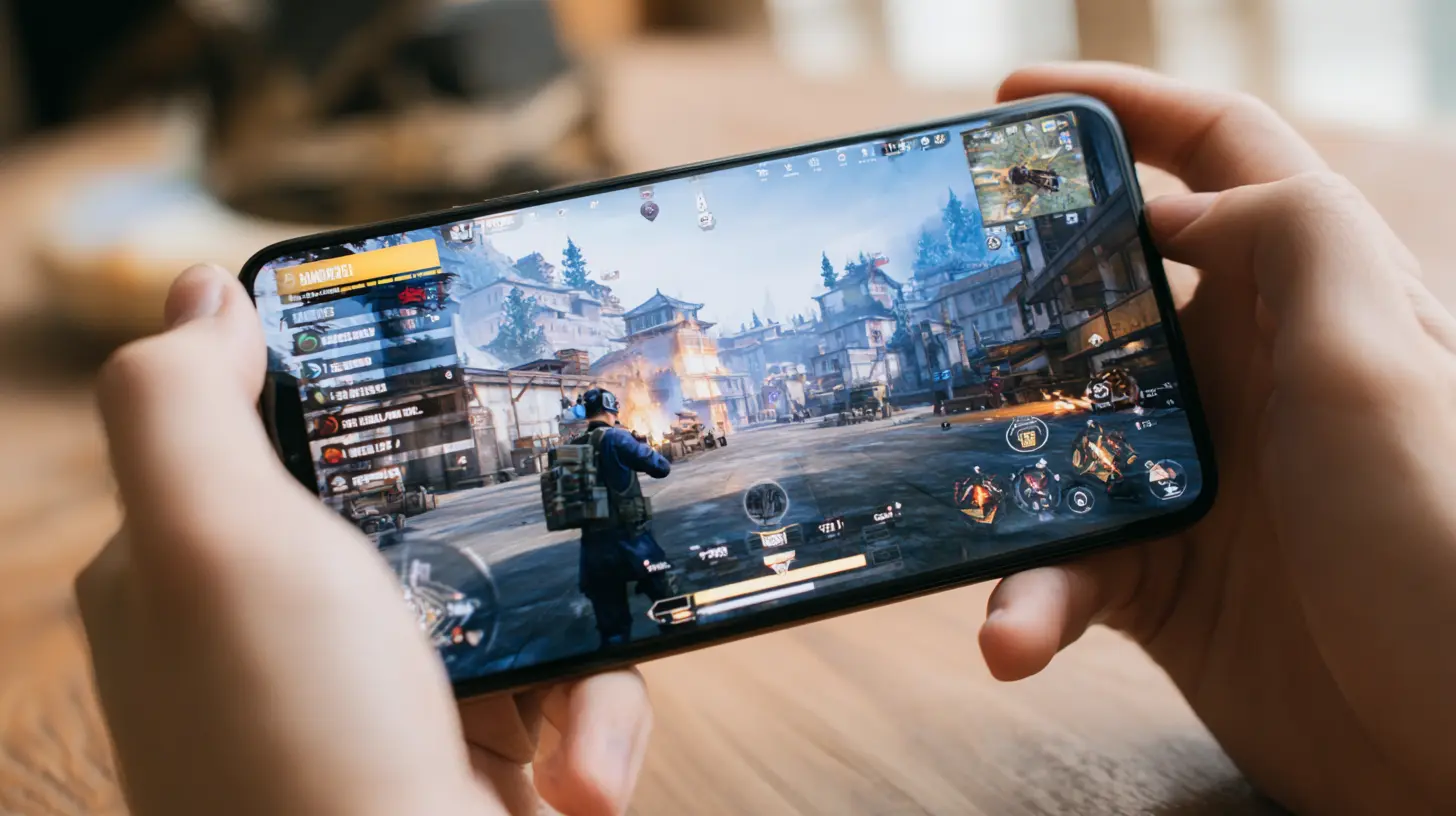
? Turn Off Battery Saver (Yes, Really)
Battery Saver mode is great for extending your phone’s life during the day, but it’s the enemy of performance while gaming.Here’s why:
- It throttles your CPU to conserve power.
- Reduces screen brightness and refresh rate.
- Limits data and background activity.
If you're serious about smooth gameplay, make sure to disable Battery Saver while you play. And if you're worried about your battery draining fast, keep a power bank handy. Problem solved.
? Optimize Your Internet Connection
You could have the fastest phone in the world, but if your internet sucks, so will your gaming experience.For multiplayer games especially, a stable connection is non-negotiable.
Quick tips:
- Switch to 5GHz Wi-Fi instead of 2.4GHz for faster speeds (if your router supports it).
- Sit closer to your Wi-Fi router.
- Use Airplane Mode with Wi-Fi enabled to avoid cellular interruptions.
- Consider using a gaming VPN to reduce ping and latency in certain regions (but make sure it’s reputable).
Because nothing ruins competitive gameplay faster than a lag spike right before that final kill.
? Remove Bloatware and Unnecessary Apps
Bloatware (those pre-installed apps you never use) can eat up storage, hog RAM, and even run sneaky background processes.What can you do?
- Uninstall or disable unused pre-installed apps.
- Clear cache from apps like Instagram and Chrome regularly.
- Use lightweight versions of essential apps (like Facebook Lite or Messenger Lite).
Think of it as spring cleaning for your smartphone. Fewer distractions and more space for the stuff you actually care about—like gaming.
?️ Keep Your Phone Cool
Smartphones heat up during extended play, and when that happens, thermal throttling kicks in. This means your phone slows down to prevent overheating. Not ideal when you're trying to dominate the leaderboards.Ways to keep it cool:
- Avoid playing while charging.
- Take short breaks between gaming sessions.
- Remove your phone case while gaming to allow better heat dissipation.
- Don’t game under direct sunlight.
You can even get a clip-on cooling fan if you're really into long sessions. Your fingers (and battery) will thank you later.
? Lower Graphics Settings if Needed
We all love those ultra settings with maxed-out shadows and reflections, but not every phone can handle them without chugging frames.If your game’s lagging:
- Drop the graphics settings to medium or low.
- Lower the frame rate or resolution.
- Turn off unnecessary effects like motion blur or anti-aliasing.
It’s better to have smooth gameplay at lower settings than to suffer through a slideshow. Trust me, your kill count will be better for it.
? Keep Your Software Updated
App and OS updates often come with performance fixes, security patches, and compatibility improvements.Make it a habit to:
- Update your games regularly from the Play Store or App Store.
- Keep your phone’s operating system up to date.
- Update system apps like Play Services or Game Optimizers.
Developers tweak performance over time. Staying updated ensures you get the most stable experience available.
? Use Game Booster Apps (They Actually Work)
Game booster apps can give your phone a short-term performance boost by automatically:- Closing background apps.
- Freeing up RAM.
- Reducing lag by prioritizing resources.
Popular game booster apps:
- Game Booster | Play Games Faster & Smoother (Android)
- Game Mode iOS Shortcuts (for advanced iPhone users)
Some phones even come with built-in boosters. Try them out—you might be surprised how much of a difference they make.
? Clear Cache and Free Up Storage
Your phone needs breathing space. If your storage is nearly full, your phone will slow down—yes, even in games.What to do:
- Delete unused apps or move them to the cloud.
- Clear cache for large apps (Settings > Storage > Cached Data).
- Use a file cleaner to remove junk files (Files by Google is a great option).
Aim to keep at least 10–15% of your total storage free. Think of it as RAM for your storage—it helps the system run smoother.
? Consider Rooting or Jailbreaking (Advanced Users Only)
Now, this isn’t for everyone—but if you’re a tech-savvy gamer willing to take the risk, rooting (on Android) or jailbreaking (on iOS) opens up a world of possibilities.Benefits include:
- Custom ROMs optimized for gaming.
- Undervolting the CPU for cooler gaming.
- Removing system bloat completely.
- Overclocking (dangerous but can pay off).
⚠️ Warning: Rooting or jailbreaking can void your warranty, and if done wrong, it could brick your phone. Proceed with caution—and only if you really know what you're doing.
? Bonus: Invest in Gaming Accessories
Sometimes a few extras can take your mobile gaming from decent to pro-level.Things worth investing in:
- Bluetooth controller: For precision in FPS or action games.
- Cooling fan or pad: Keeps performance stable during long sessions.
- Gaming earbuds: For immersive sound and voice chat.
- Gaming phone grips or triggers: Especially useful for shooters.
Sure, they won’t transform a weak phone into a powerhouse, but they’ll definitely boost your comfort and accuracy.
? Final Thoughts
Optimizing your smartphone for gaming performance isn’t rocket science. Most of it boils down to making sure your phone is clean, cool, and free of unnecessary distractions. A few tweaks here and there, and you'll be racking up wins like a pro.Whether you're chasing that Chicken Dinner or grinding on Genshin, a well-optimized phone makes all the difference.
So go ahead—tweak those settings, clean up your apps, and put your phone in beast mode. Your squad is waiting, and the game won’t win itself.
all images in this post were generated using AI tools
Category:
Mobile GamingAuthor:

Jerry Graham
Discussion
rate this article
1 comments
Kyle McCaffrey
Great article! The tips on adjusting graphics settings and managing background apps are especially helpful. I appreciate the focus on battery management too. It's essential for a smooth gaming experience. I look forward to trying these suggestions out on my device. Thanks!
June 23, 2026 at 3:01 AM
Jerry Graham
Thanks for your feedback! I'm glad you found the tips helpful. Enjoy optimizing your device for gaming!